
How to use Google Lens to Transcribe Documents
Share

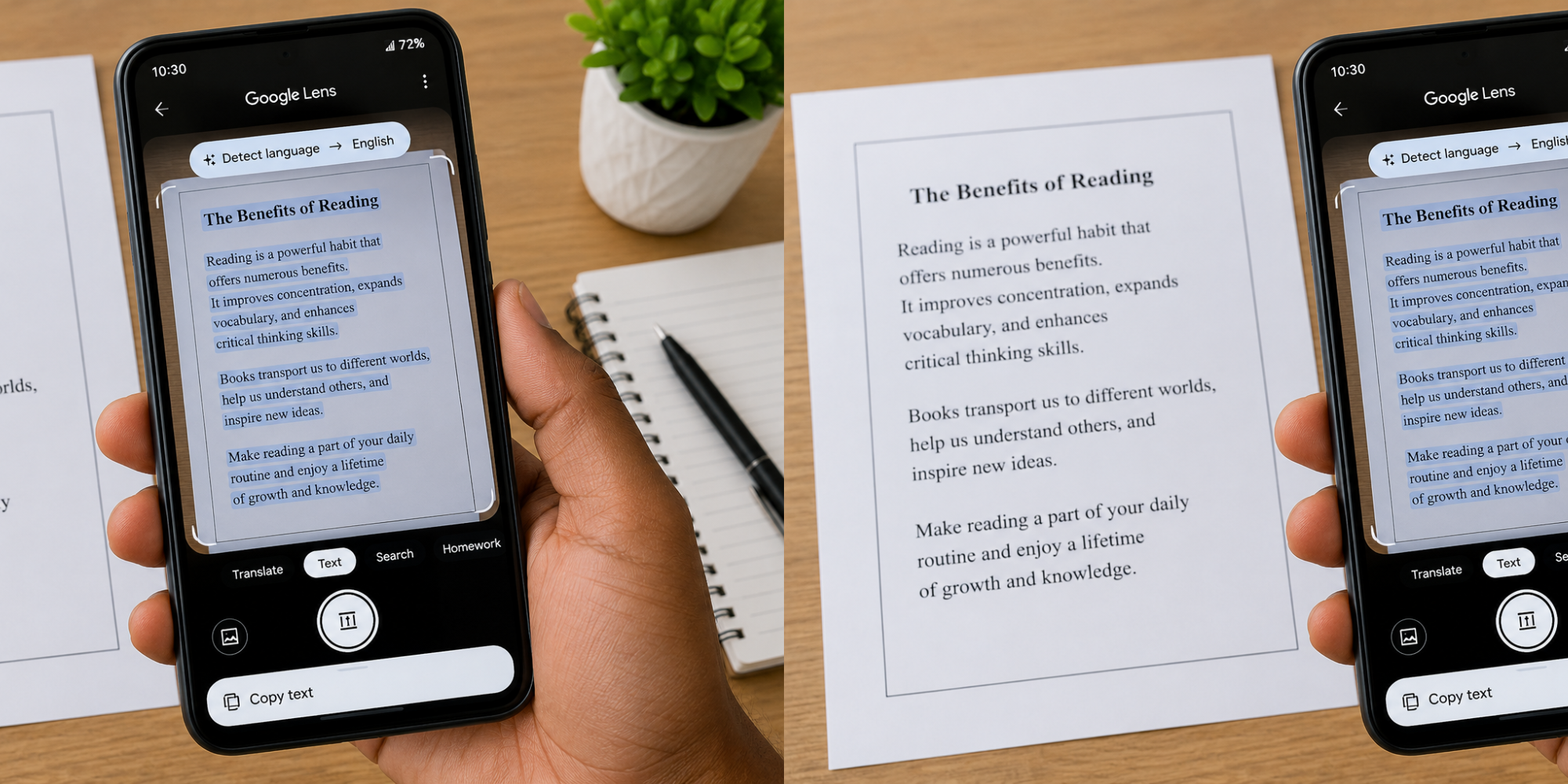
Typing out text from a printed document, book, receipt, or handwritten note can take a lot of time. Google Lens provides a faster way to extract text from an image and copy it to another app.
The feature uses Optical Character Recognition (OCR) to identify text in images and make it selectable and copyable.
Google Lens can be accessed through Google Photos, the Google app and on some Android phones, the camera app.
To transcribe a document using Google Lens, you need:
- A smartphone or tablet
- The Google Photos or Google app
- A clear photo of the document, or access to the document itself
- Good lighting for better results
Method 1: Transcribe a Saved Document or Photo
This method is useful if you already took a photo of the document.
Step 1: Open Google Photos
Open the Google Photos app on your Android phone and select the image containing the document.
Step 2: Open Google Lens
Tap the Google Lens icon at the top or bottom of the screen, depending on your device and app version. Google Lens will analyse the image and identify the text.
Step 3: Select the Text Option
Tap Text. Google Lens will highlight the words it has detected in the image.
You can then select all the text, a paragraph, a sentence, or specific words
Step 4: Copy the Text
Tap Copy text to copy the extracted words.
You can then paste the text into either Google Docs, Microsoft Word, WhatsApp, email, Notes, or any other app that supports text
This eliminates the need to type the document manually.
Method 2: Scan a Document Directly
You can also use Google Lens to capture text directly from a physical document, then open Google Lens through the Google app, Google Photos, or a supported camera app.
Point your camera at the document, then take a clear photo or allow Lens to scan the text, tap Text, select the words you want to extract, tap Copy text, then finally paste the text into your preferred app.
Also Read: How to Apply for a Driving School Licence in Kenya
How to Get Better Transcription Results from the Google Lens
The quality of the original image affects the accuracy of the transcription. For the best results:
- Place the document on a flat surface.
- Use good lighting.
- Avoid shadows across the page.
- Keep the camera steady.
- Make sure the text is in focus.
- Take the photo straight on instead of at an angle.
- Use a high-quality image.
- Scan one page at a time if the document is long.
Google Lens is generally more effective with clear printed text than with blurry images or difficult handwriting.
You should also check the extracted text for errors before using it in an official document.
How to Transcribe Text from a Screenshot
- Open the screenshot in Google Photos.
- Tap the Google Lens icon.
- Choose Text.
- Select the text you want.
- Tap Copy text.
- Paste it wherever you need it.
This can be useful for extracting information from online notices, social media posts, digital books and images.
Google Lens can also translate text from images. After scanning the document, choose the Translate option to view the text in another language.
Google says Lens can translate text into languages supported by Google Translate.
Also Read:2026 Term 3 School Dates, Holidays, and Exam Schedule
What it Cannot Do Perfectly
Google Lens is a useful transcription tool, but it may make mistakes when:
- The image is blurry.
- The text is very small.
- The document has unusual fonts.
- The page is poorly lit.
- The text is heavily handwritten.
- The document has complicated columns or tables.
For important documents, always compare the extracted text with the original before submitting or publishing it.
Google Lens is best for quickly extracting text from a photo. If you need to scan several pages and create a professional searchable PDF, a dedicated document-scanning or OCR tool may be more suitable.
OCR technology is specifically designed to detect and extract text from images and scanned documents.
Follow our WhatsApp channel for instant news updates

Google Lens Allows Users to Digitise Text from Physical Documents
PHOTO/Grok