

How to Download Your Business Registration Certificate from eCitizen
Share

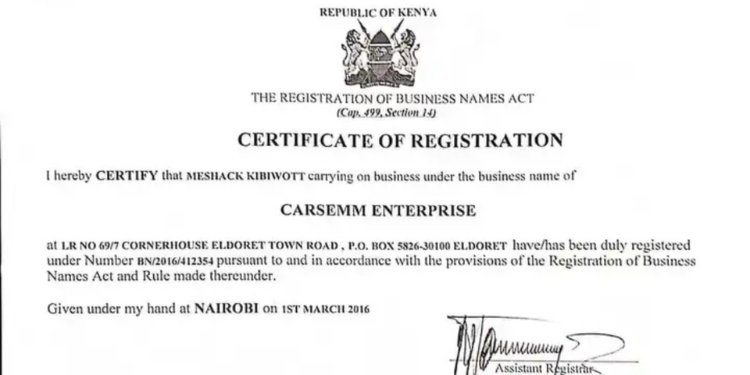
Business owners in Kenya can download their Business Registration Certificate online through the eCitizen platform by accessing the Business Registration Service (BRS) portal.
The process allows registered business owners to retrieve and save a copy of their certificate without visiting government offices, provided they have access to their eCitizen account.
Steps on How to Download Business Registration Certificate from eCitizen
To start downloading, applicants are advised to use a computer or laptop, as the process may not be reliable on a mobile phone
In addition, business owners should ensure that they have their eCitizen login credentials, including their email address or ID number and password, for the process to be effective.
Also Read: How to Apply for an Emergency Travel Document
Step 1: Log in to the eCitizen Portal
This is the first step of the process. Once logged in, entrepreneurs should switch to their Personal or Individual Account if prompted, instead of an Organisation or Business Account.
Thereafter, applicants should scroll down and select the Business Registration Service (BRS) before proceeding to the Companies Registry Services section.
Step 2 : Access the Certificate
Within the Companies Registry Services dashboard, one should click on Application History to view all previously submitted business registration applications.
They should then locate their registered business name, click View under the Action column, and scroll to the Downloads section.
Applicants will then select the Business Registration Certificate to download and save the document to their computer.
Also Read: How to Track Your Passport Application in Kenya
How to Replace a Lost Certificate
Elsewhere, in cases where the certificate is lost, business owners can easily replace it fully digitally through the eCitizen platform.
To start the replacement process, one is required to log in to the eCitizen portal using their national identification card ID, email address, and mobile number.
Once logged in, they will navigate to the Business Registration Services (BRS) section on the dashboard, which handles all business-related services, including certificate downloads and replacement requests, and click on “My Businesses” to view all companies registered under their ID details.
Additionally, business owners will then provide a brief explanation for the request, such as loss, theft, or damage of the original document.
However, in some cases, they may be required to attach an affidavit and a police abstract to support the application.
Once documents are submitted, applicants proceed to pay a replacement fee, usually around Ksh 500 on the eCitizen platform, and a payment receipt is generated automatically.
After approval, applicants receive an SMS or email notification to show that their certificate is ready for download.
Follow our WhatsApp channel for instant news updates.
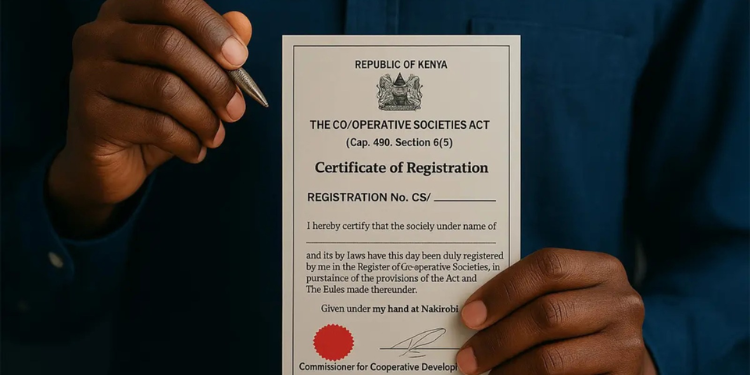
Business Registration Certificate: How to Download It from eCitizen.Photo/ file